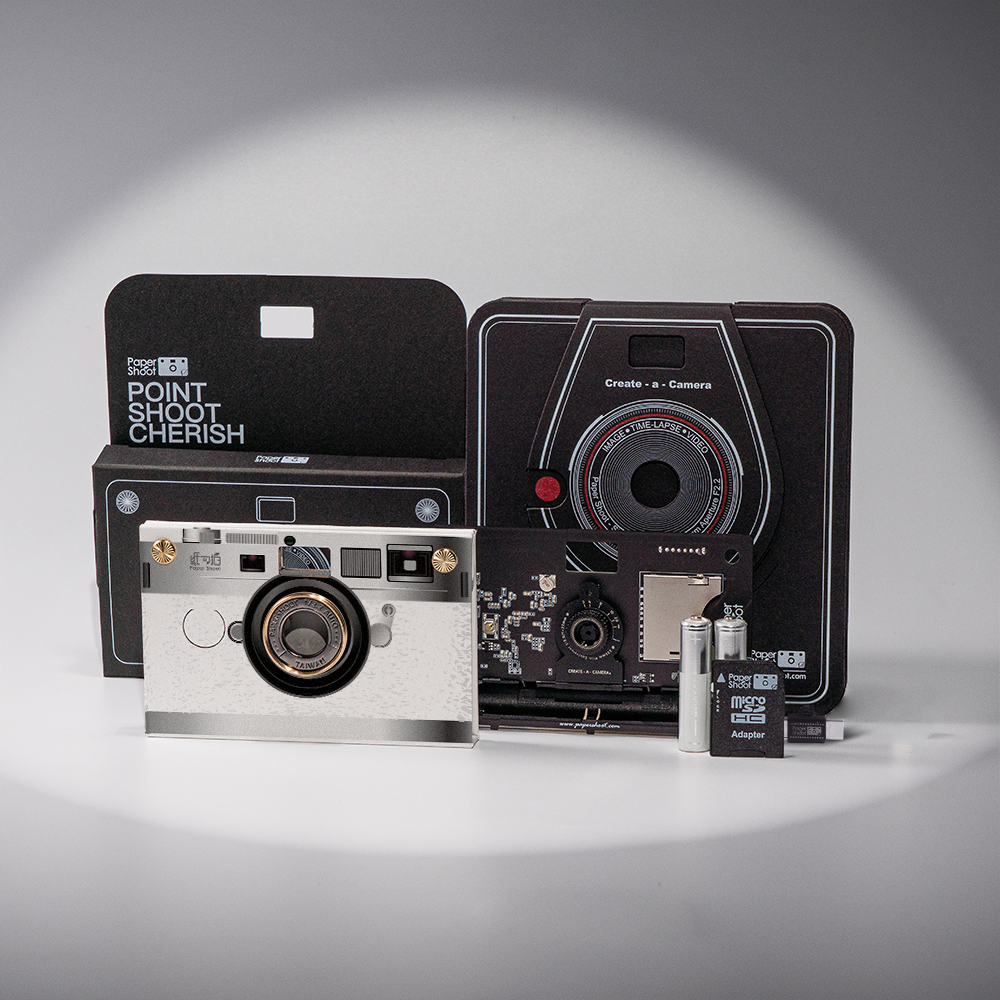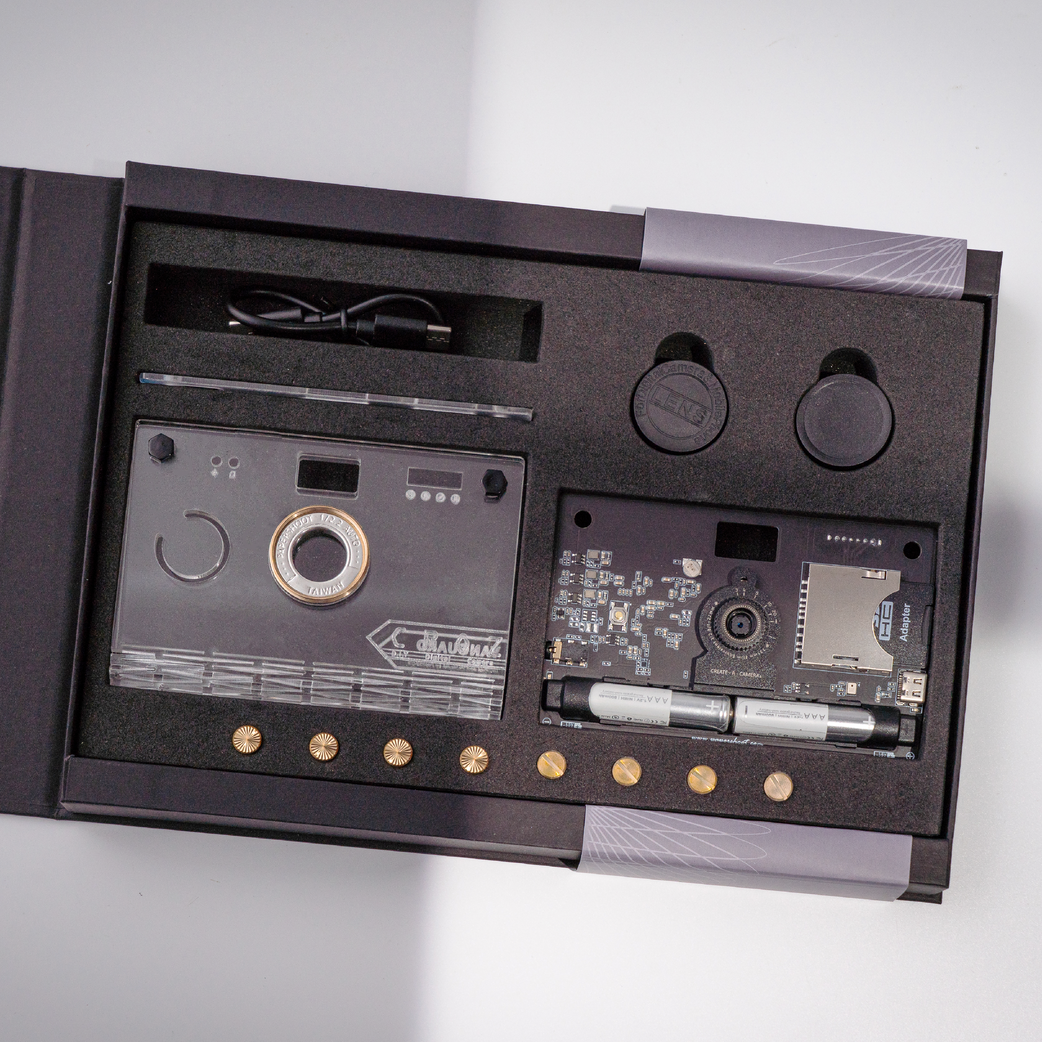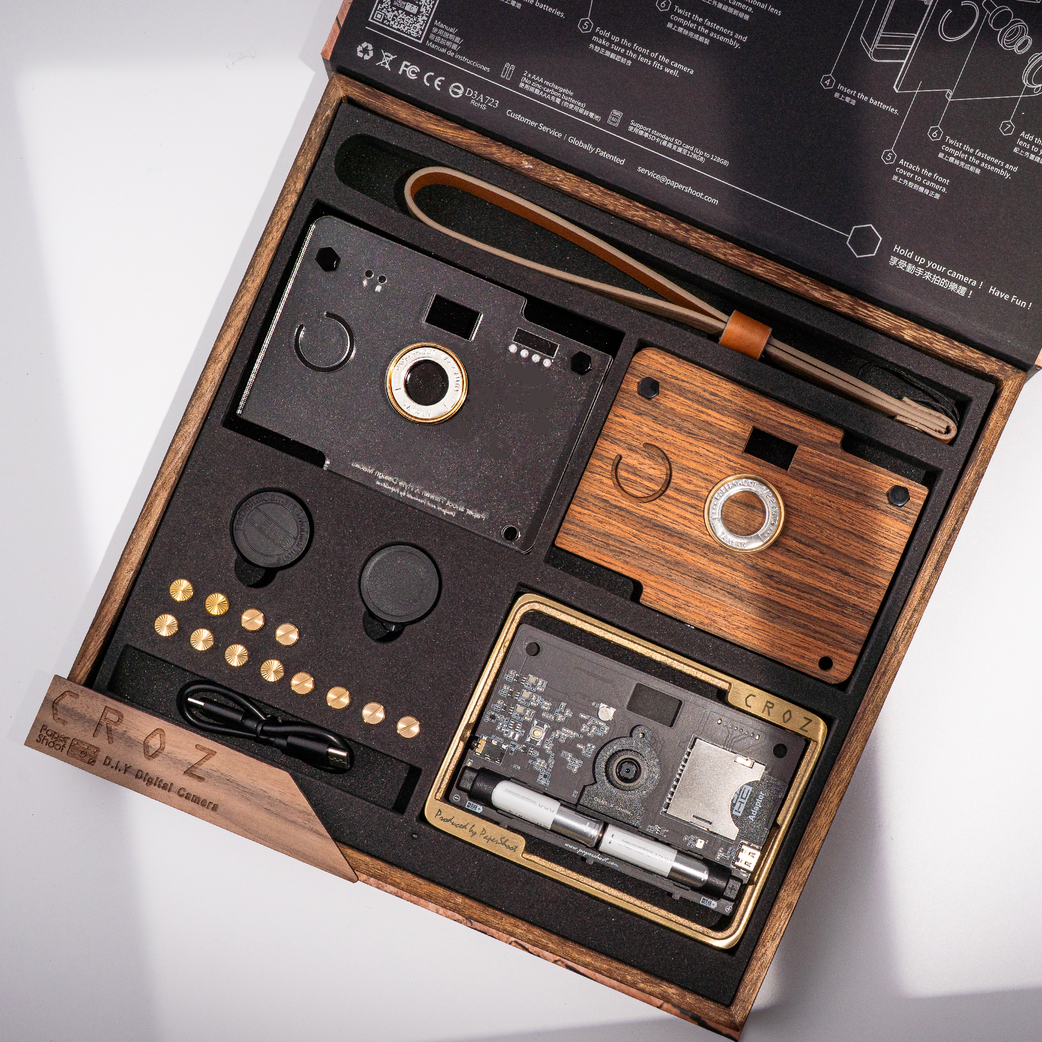

1
REMOVE THE BATTERY TABS
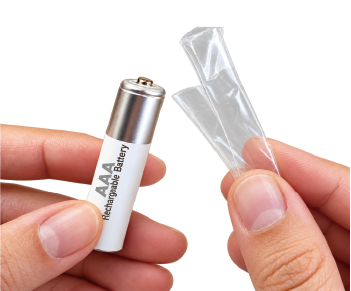
Pull the clear or white tab off both batteries. The camera won't power on with them still on.
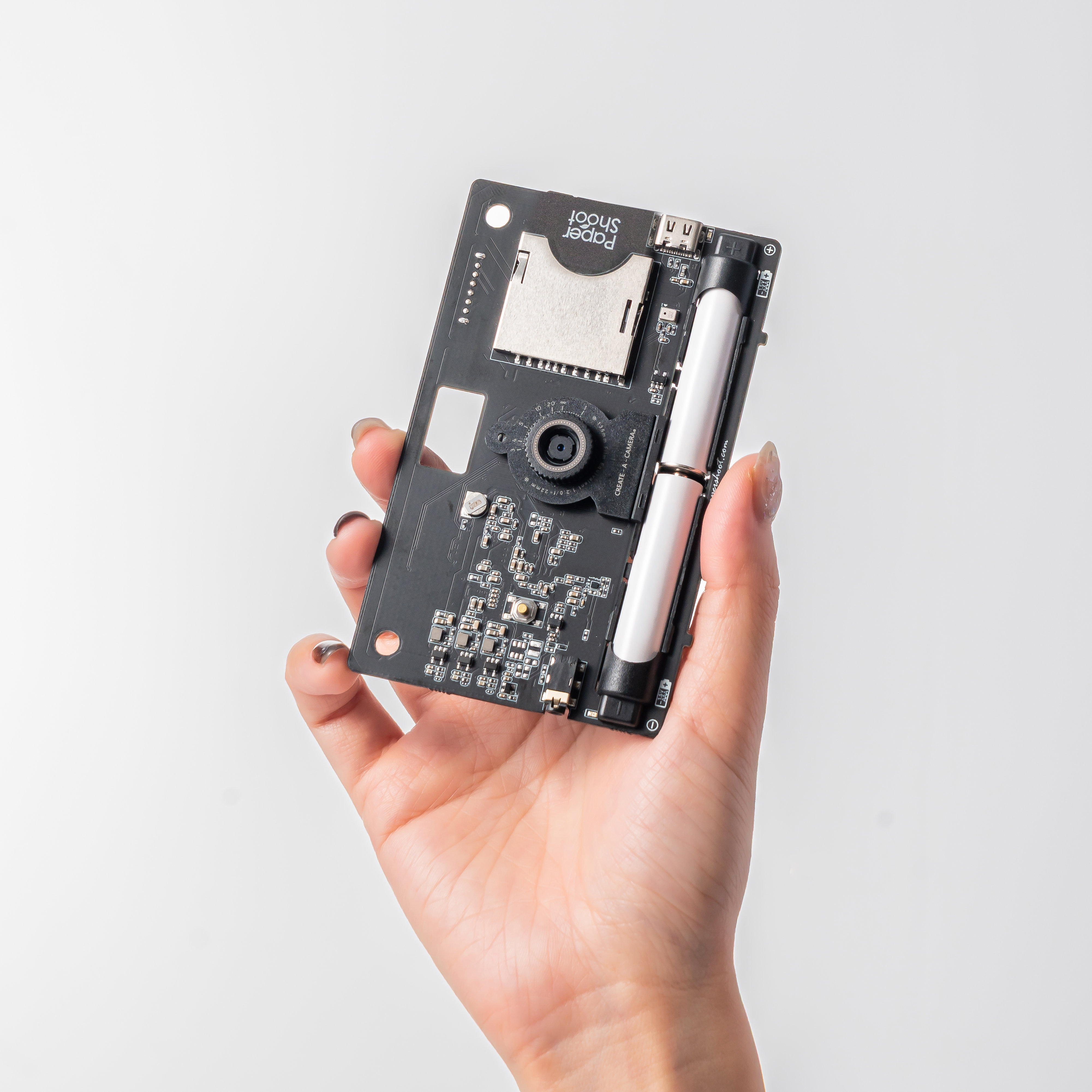
Five steps, in this order. About five minutes, plus charging time. Swipe to see them all.
Pull the clear or white tab off both batteries. The camera won't power on with them still on.


Remove the protective film from the lens.
Put the case on before charging. Assembly videos for your model are below.

Use a wall adapter or power bank, not a computer.
Green light turns off after charging: Fully charged.
No green light when first connected? Check your cable and power adapter.


Slide the switch on the back all the way to the left for Color.
No power button, just press the shutter. Two quick beeps, then a click sound. Your photo is saved.


Photos save to the microSD card as JPG files. No app needed.
Unlock your iPhone before connecting. Full steps below.
Paper Shoot cameras are designed for easy assembly.
Follow the quick video guide below to put yours together in just a few steps.
Paper Shoot has no screen, so it talks to you with sound and two small lights on the back.
Press the shutter once. Two quick beeps mean the camera is on and taking a photo. The click sound about a second later means the photo is saved. Hold still until you hear the click. Moving before then is the most common reason a photo comes out soft, especially indoors or in the evening.
After the click sound, the camera is ready for the next photo in about half a second. Press again whenever you're ready.
The camera turns itself off after each photo, so nothing drains in your pocket. There's no warm-up and no power button. One press turns it on and takes the photo.
The camera is small and light, so there's no tripod mount. Any phone tripod clip holds it well. Just clip it in the way you would a phone.
With the camera plugged into USB power, position 3 becomes time-lapse and position 4 becomes video.
Time-lapse: press the shutter once and the camera takes a photo every 5 seconds until you move the switch. Every 30 minutes of shooting is saved as its own time-lapse video.
Video: each press of the shutter records a 10 second clip at 1440p, 30fps. Press again to record the next one.
Watch how it works: 🎥
Want video on the go?
The Recording card lets you shoot video and time-lapse on battery power, no cable needed, and the video records with sound. With the card in, position 1 is color photos, position 2 is black and white, position 3 is time-lapse, and position 4 is a 10 second video with sound.
Recording card: https://www.papershoot.com/collections/pro-add-ons/products/feature-expansion-card
If the camera keeps shooting after one press while it's plugged in, it's on the time-lapse position. Move the switch to position 1 or 2 to stop.
The slot on the back
The SIM-style slot on the back of the camera is for filter cards and function cards only. Your memory card lives on the front of the camera board, under the case, and it's already installed. Nothing else goes in the back slot.
A filter card is a physical card that slides into the back slot and adds four more tones, one for each position of the mode switch. With a 4-card set, your camera shoots 20 tones: 4 built-in plus 16 from the cards. Across all 10 filter cards, that's 44 tones.
Only one card fits at a time, so you swap cards rather than stack them.
Browse filter cards: https://www.papershoot.com/collections/filter-card
Function cards add a feature instead of a tone. There are four Feature Expansion Cards:
Feature Expansion Cards: https://www.papershoot.com/collections/pro-add-ons/products/feature-expansion-card
The Hand Crank is a separate add-on. It comes with its own Vari-Speed Recording card, and turning the crank slowly or quickly records slow-motion or fast-motion video. https://www.papershoot.com/products/hand-crank-_vari-speed-recording-hand-crank-for-18mp-20mp-camera
Only one card fits in the back slot at a time, so you swap cards rather than stack them.
Watch first: 🎥
For the first try, take the camera case off so you can see the slot. Use your fingernail to gently push the card to the very end of the slot until you hear a click. Once it clicks, it's locked in and won't pop back out.
To remove it, push it all the way in until you hear a click, then gently pull it out. Don't pull it out without pushing first.
Once you've felt the click and how much pressure it takes, sliding the card in and out from the side with the case on gets much easier.
For 18MP and 20MP cameras
Your photos carry a date and time stamp, and the clock resets whenever the camera loses power. Syncing takes about a minute on a computer. Do it once after unboxing, and again before a trip if the batteries have run flat.
The card that comes with your camera is 8GB or larger, which holds roughly 8,000 photos or more. A 32GB card holds over 15,000 and a 64GB card over 30,000. The camera supports cards up to 128GB 🎥
When the card is full, pressing the shutter gives an error sound and the left light on the back blinks. Move your photos to your phone or computer, clear the card, and you're ready to shoot again 🎥
About 300 to 500 photos on a full charge. When the right light on the back starts blinking quickly, it's time to charge for 2 to 3 hours. Rechargeable NiMH AAA batteries (1.2V, 800mAh or higher) lose capacity after a few years, so a fresh pair brings an older camera back to full battery life.
Alkaline AAA batteries work for a quick test. Never plug in the USB cable while alkaline batteries are in the camera. Zinc carbon (heavy duty) batteries won't power the camera.
No. Pressing the shutter turns the camera on, takes the photo, and switches it off again. If you won't use the camera for a long time, take the batteries out and store them separately.
Peel the clear protective layer off both sides of the acrylic panels. Once it's off, the case is fully clear.
Visit our Manual Download page, scroll to your model, and click the language file you want — it’s that easy!
Something not working?
Most issues are fixed in a few minutes with a battery charge or a card check.